Before You Upload Your Cover
Start with the highest-quality cover file you have, ideally the final front cover from your designer or publishing dashboard. For most author websites, a JPG or PNG cover between 1,000 and 2,500 pixels tall is enough. Bigger is not always better: a 9 MB cover can make your page feel slow, especially on mobile.
Name the file clearly before uploading, such as book-title-cover.jpg. This helps you stay organized if you manage several books, and it gives you a cleaner workflow when replacing covers later.
How to Add a Book Cover in HostingAuthors.com
1. Open your author dashboard
Sign in to HostingAuthors.com and go to your portal dashboard. You will see your existing books, quick actions, and an option to create a new book page.
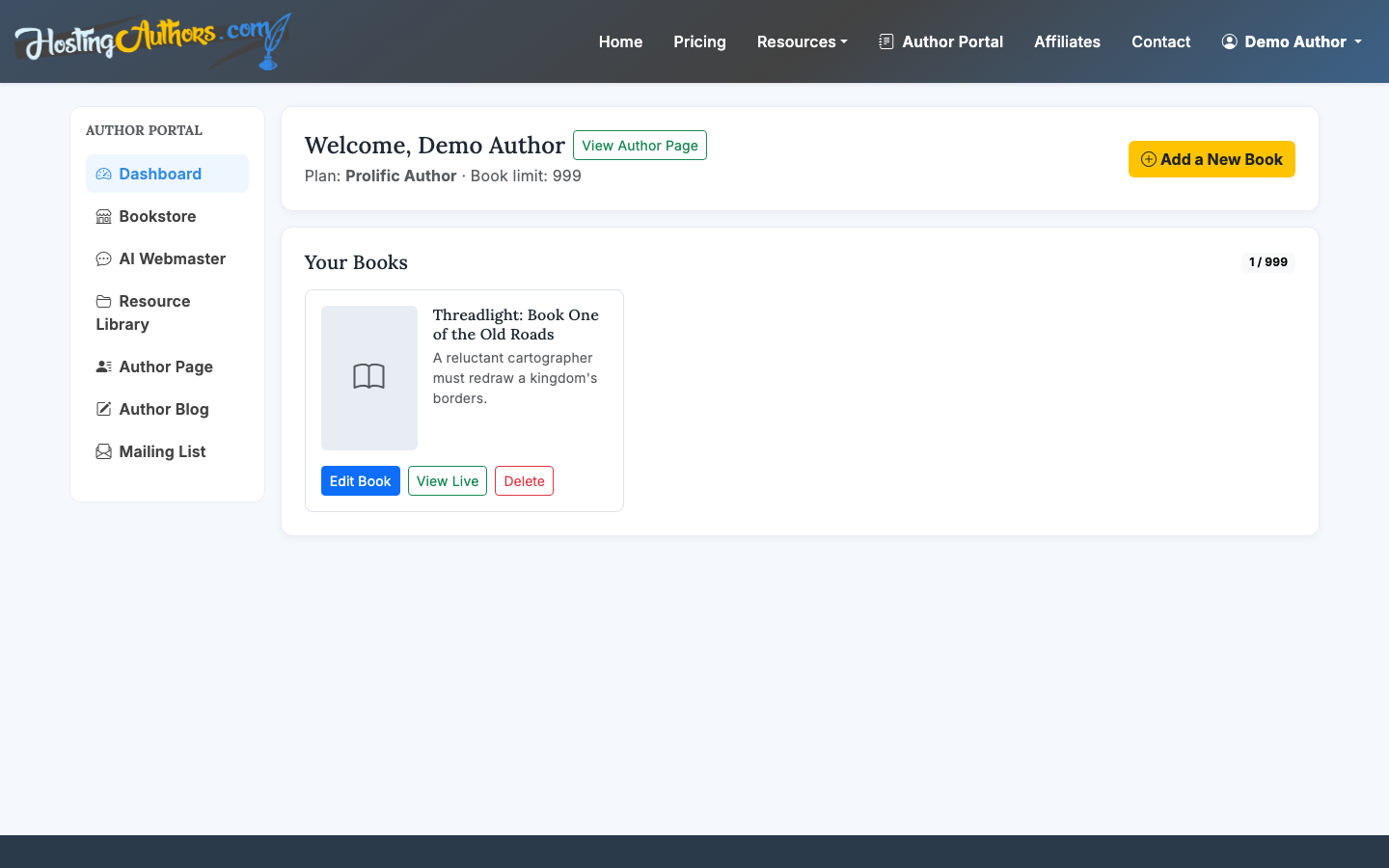
If you are setting up your first title, choose the new book option. If the book page already exists, select the edit action for that book.
2. Open the book editor
In the book editor, you can manage the core details of the page: title, subtitle, ISBN, publisher, cover, synopsis, and page content. This is where the cover image belongs because it drives the main visual presentation of the public book page.
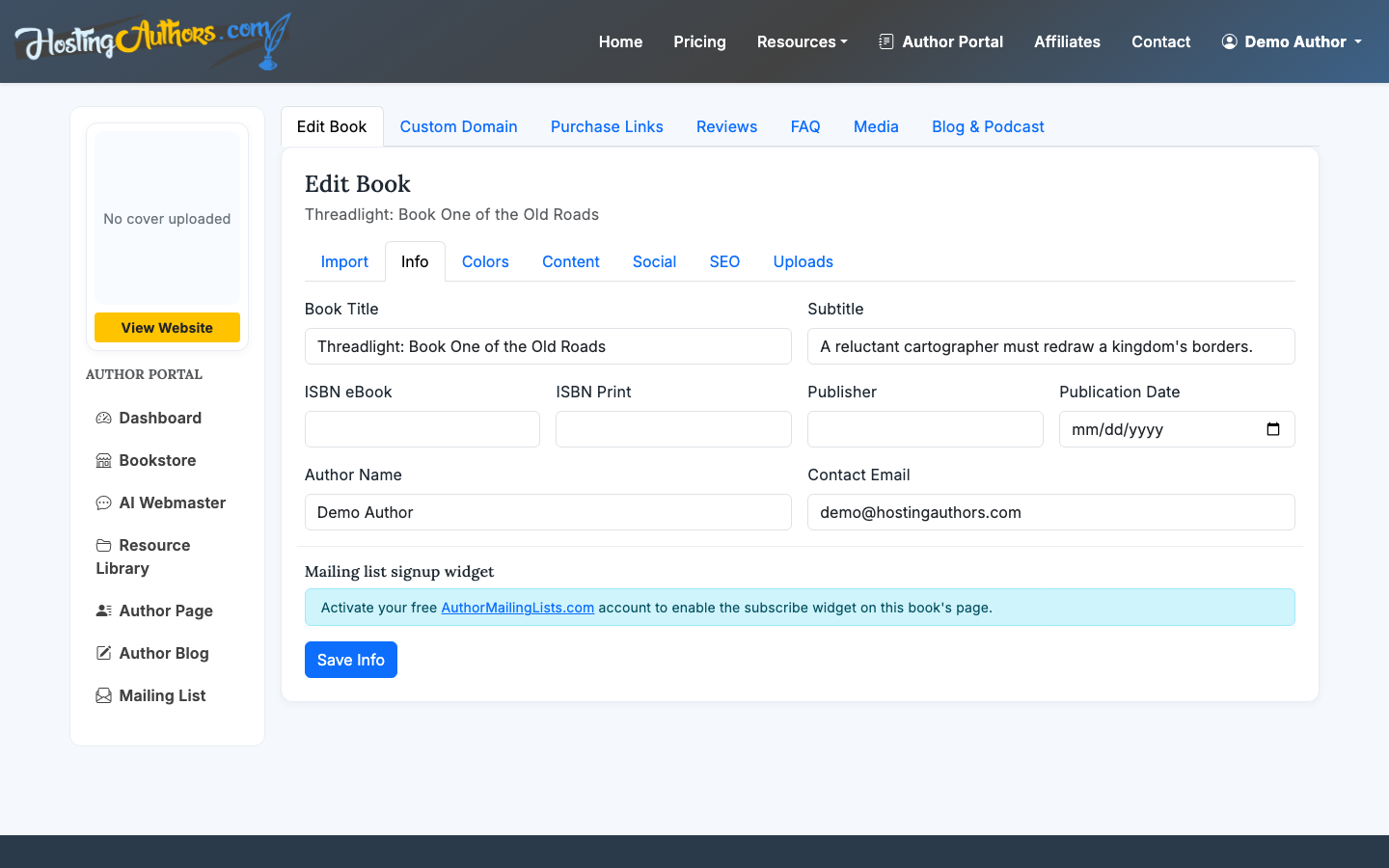
Upload your cover image, then review how it appears alongside the title and description. If the image looks soft, stretched, or cropped in an awkward way, replace it with a cleaner front-cover file rather than trying to fix it with page text.
3. Check the public book page
After saving, open the public book page and inspect the cover in context. A good book page does more than display an image. It should connect the cover to the promise of the book: the synopsis, purchase links, FAQ, reviews, and any reader signup offer.
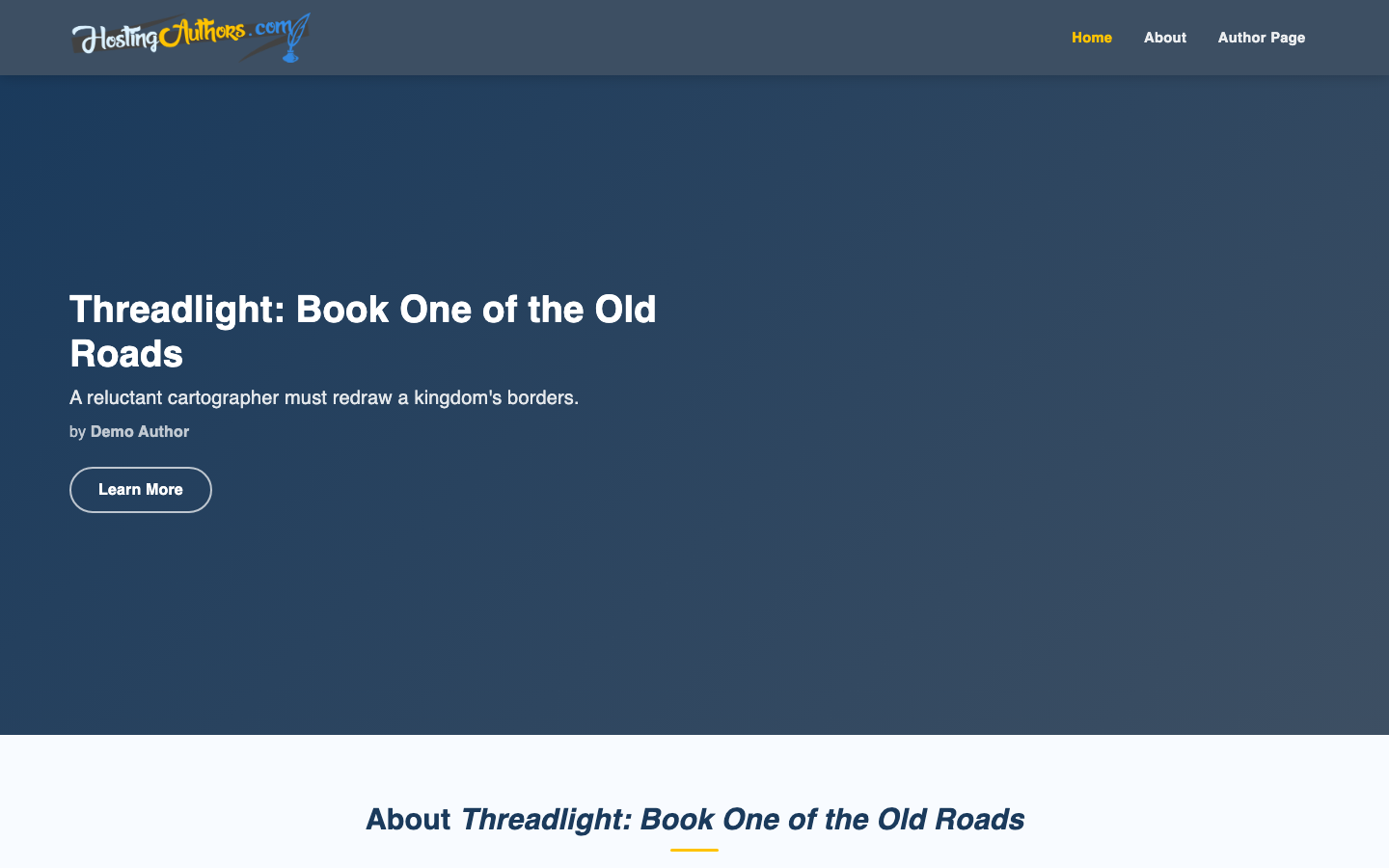
Look at the page on both desktop and mobile. On desktop, the cover should feel prominent without overpowering the synopsis. On mobile, it should load quickly and not force readers to scroll too far before they understand what the book is about.
4. Add purchase links near the cover experience
Readers who recognize the cover from Amazon, Bookshop, a conference, or social media should have an obvious next step. In HostingAuthors.com, use the Purchase Links tab to add retailer URLs such as Amazon, Barnes & Noble, Apple Books, Kobo, or other stores.
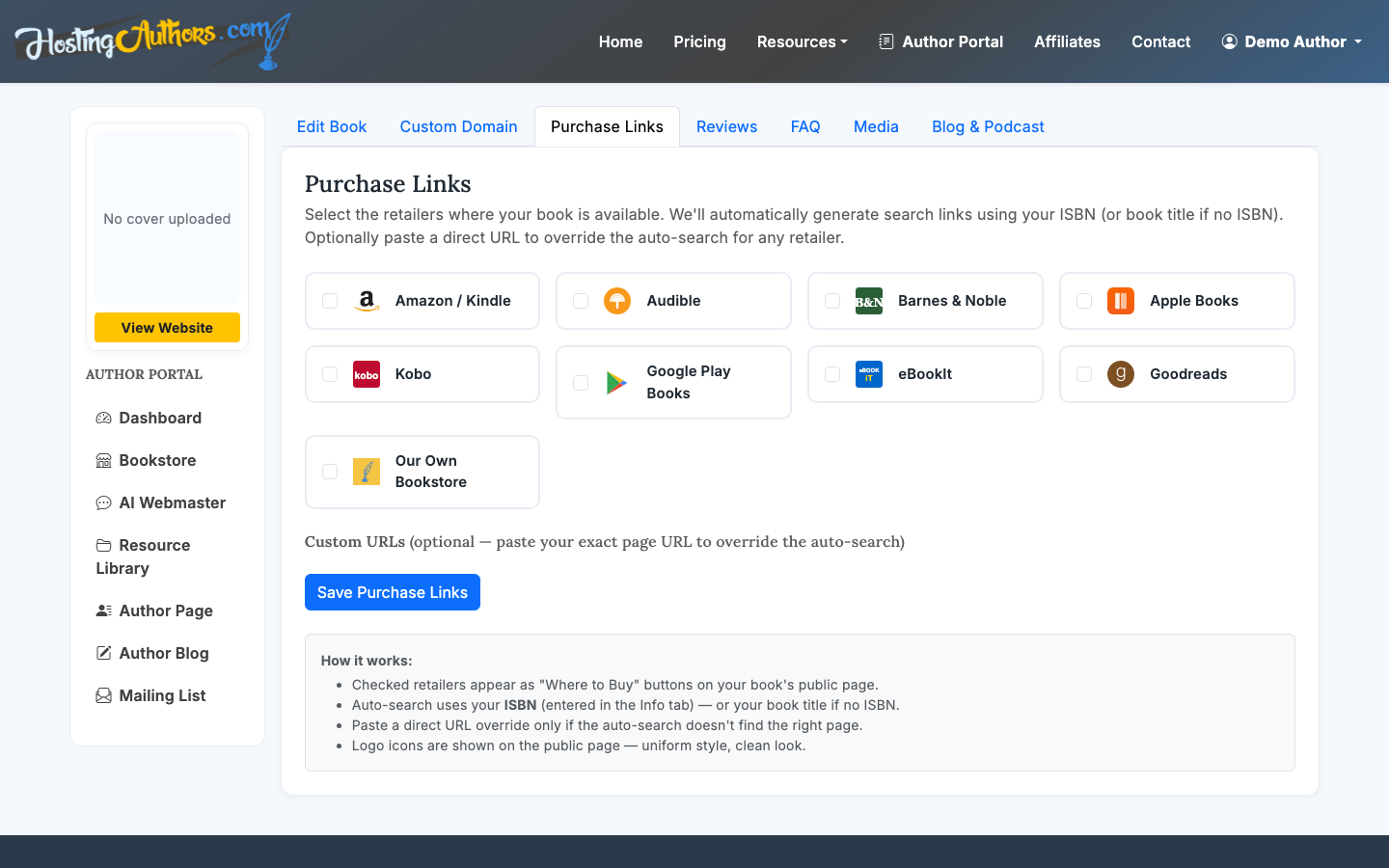
This turns the cover from a static image into part of a conversion path. The reader sees the book, reads enough to confirm interest, then chooses where to buy.
5. Add preview content below the cover
If you are wondering, "how can I embed book previews online," the best answer depends on where your preview lives. Common options include:
- Linking to the Amazon Kindle preview or retailer sample
- Embedding a preview widget if your retailer or distributor provides one
- Adding a sample chapter as page content
- Linking to a PDF excerpt
- Offering the first chapter through your mailing-list signup
HostingAuthors.com book pages are built around editable content sections, so you can place preview copy in the synopsis area, FAQ, blog, or purchase-link context depending on how you want readers to move through the page.
For most authors, the cleanest approach is to include a short synopsis, add retailer links that support previews, and offer a sample chapter through your mailing list if growing your audience matters more than sending every visitor directly to a retailer.
6. Use reviews and FAQ to support the preview
A cover gets attention, but previews need confidence signals. Add a few curated reviews and practical FAQ items that answer reader objections: reading order, genre fit, content level, format availability, or whether the book is part of a series.
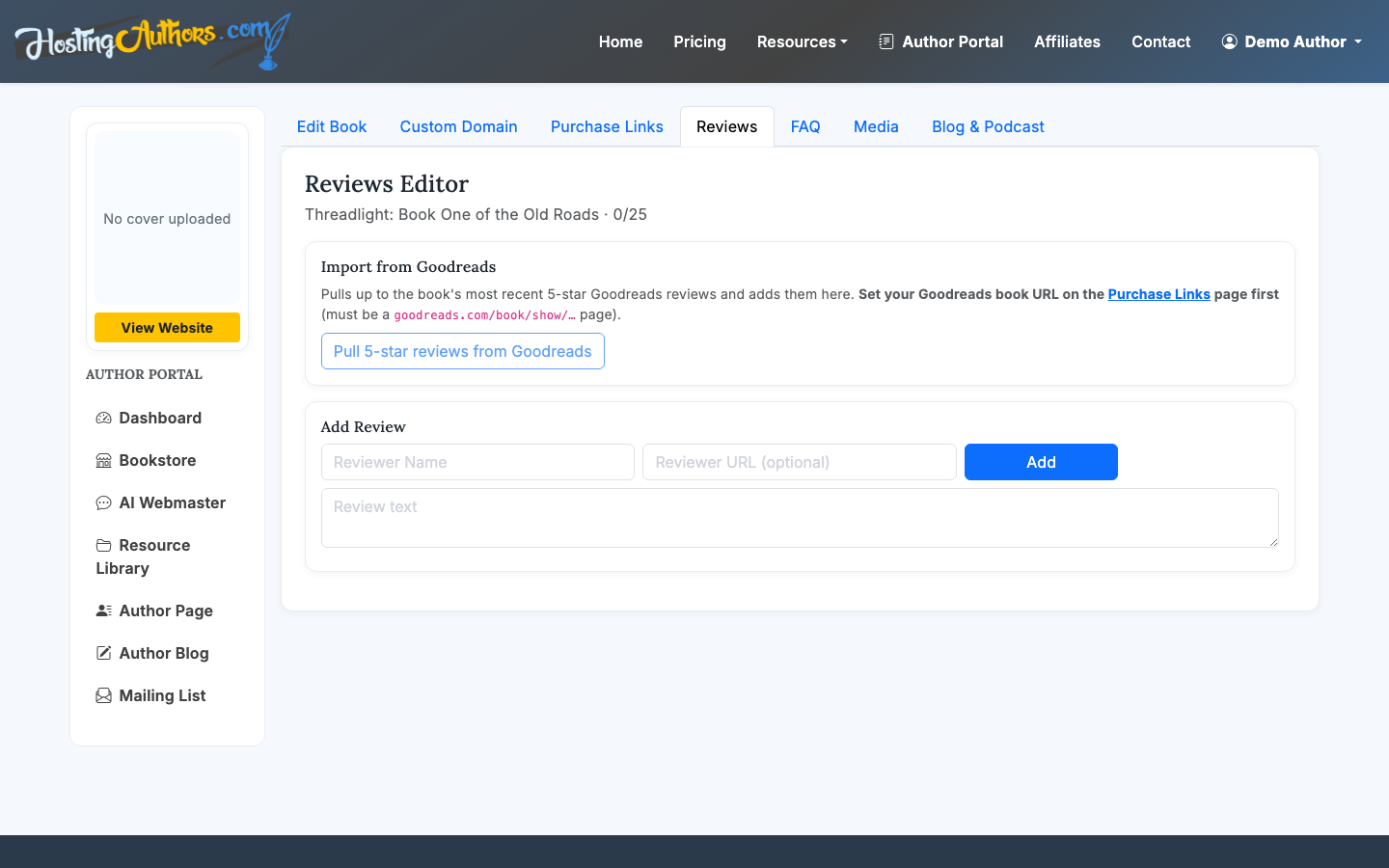
You can also add FAQ items from the book editor area, then show those answers on the public page.
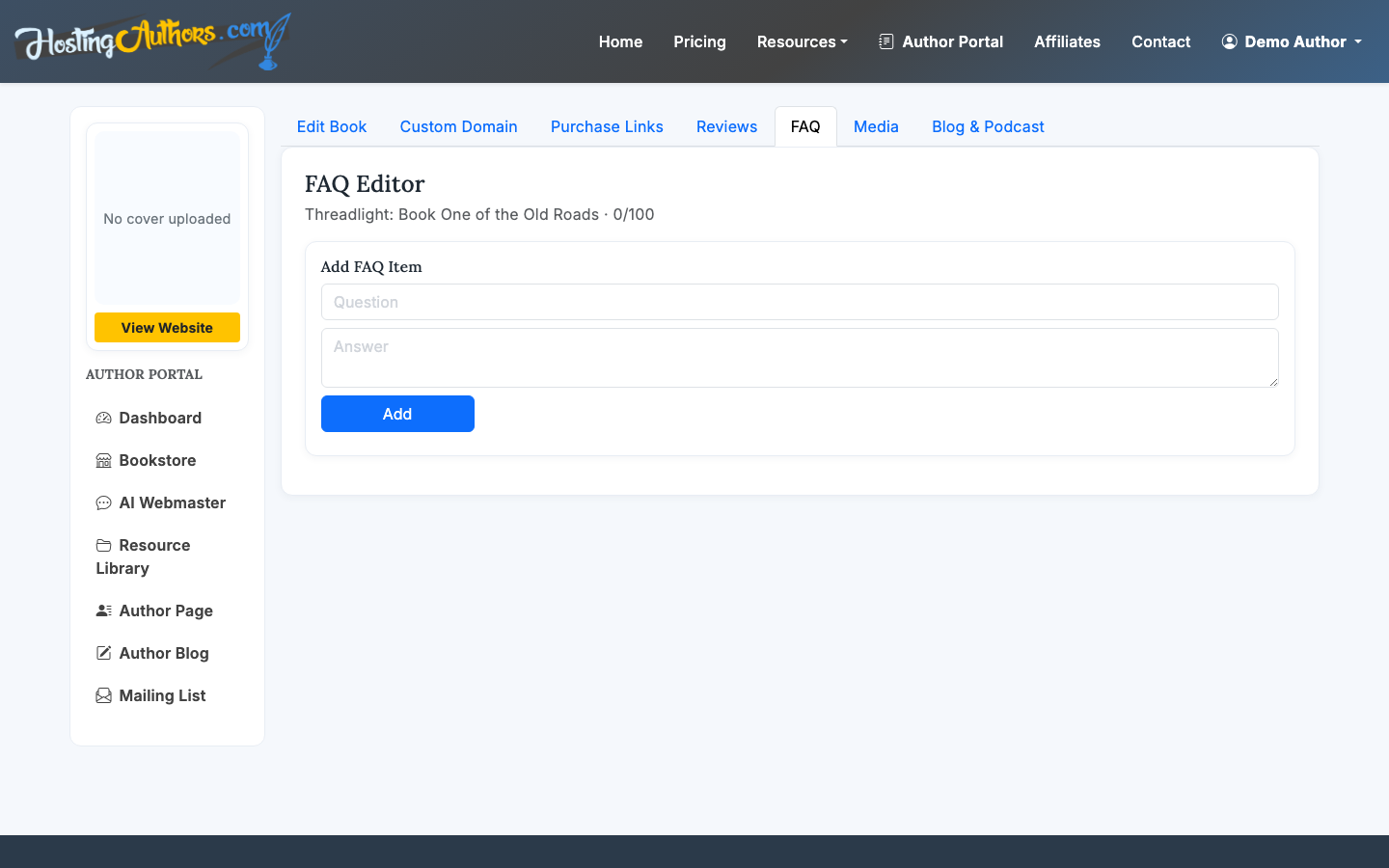
Keep these short. A review excerpt of one or two sentences is usually stronger than a full paragraph, and FAQ answers should help the reader decide rather than repeat the sales copy.
Cover Placement Best Practices
Keep the cover close to the title
Readers should not have to connect scattered pieces of information. Place the book cover, title, subtitle, author name, and primary action close together. This is especially important if you are linking to the page from ads, newsletters, podcasts, or QR codes.
Avoid tiny cover thumbnails
A thumbnail works on a catalog page, but a dedicated book website should let the cover breathe. If the cover contains a subtitle, award badge, or strong visual hook, make sure it is readable on a phone.
Do not upload flat 3D mockups as the only cover
Angled book mockups can look polished, but they are often harder to read. Use the flat front cover as the main image. If you want lifestyle images or 3D mockups, use them lower on the page or in promotional graphics.
