What your book website should include
A strong book website does not need to be complicated. It needs to answer the reader's immediate questions quickly:
- What is the book about?
- Who is it for?
- Where can I buy it?
- Can I read reviews or endorsements?
- Can I follow the author or get updates?
For most authors, a focused book landing page works better than a sprawling website. You can always add an author hub, blog, podcast feed, or direct bookstore later.
1. Create your HostingAuthors.com account
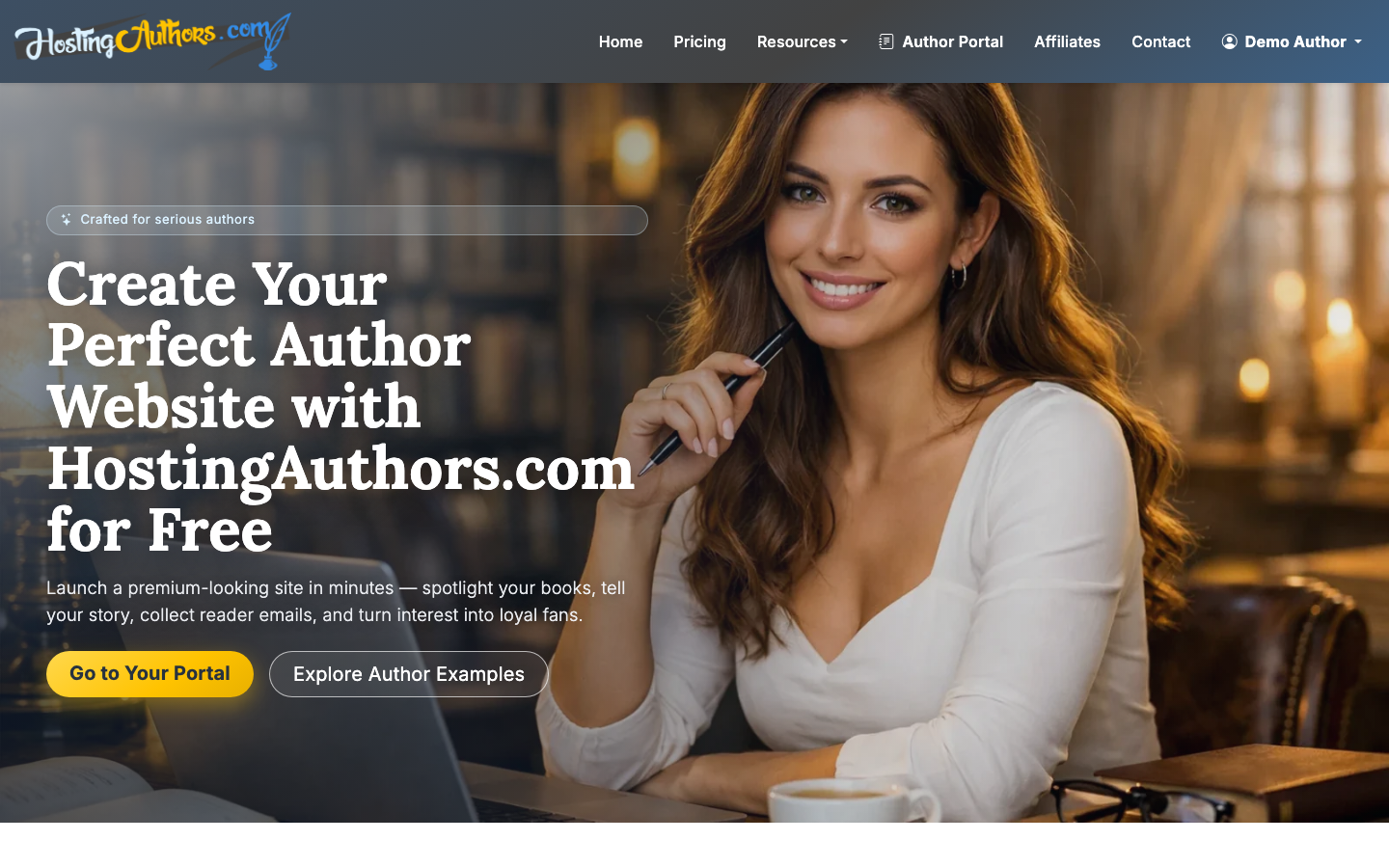
Start by creating an account with email and password or Google sign-in. The New Author plan is permanently free, so you can build and publish a public book page before deciding whether you need paid features like an author hub, mailing list, or direct bookstore.
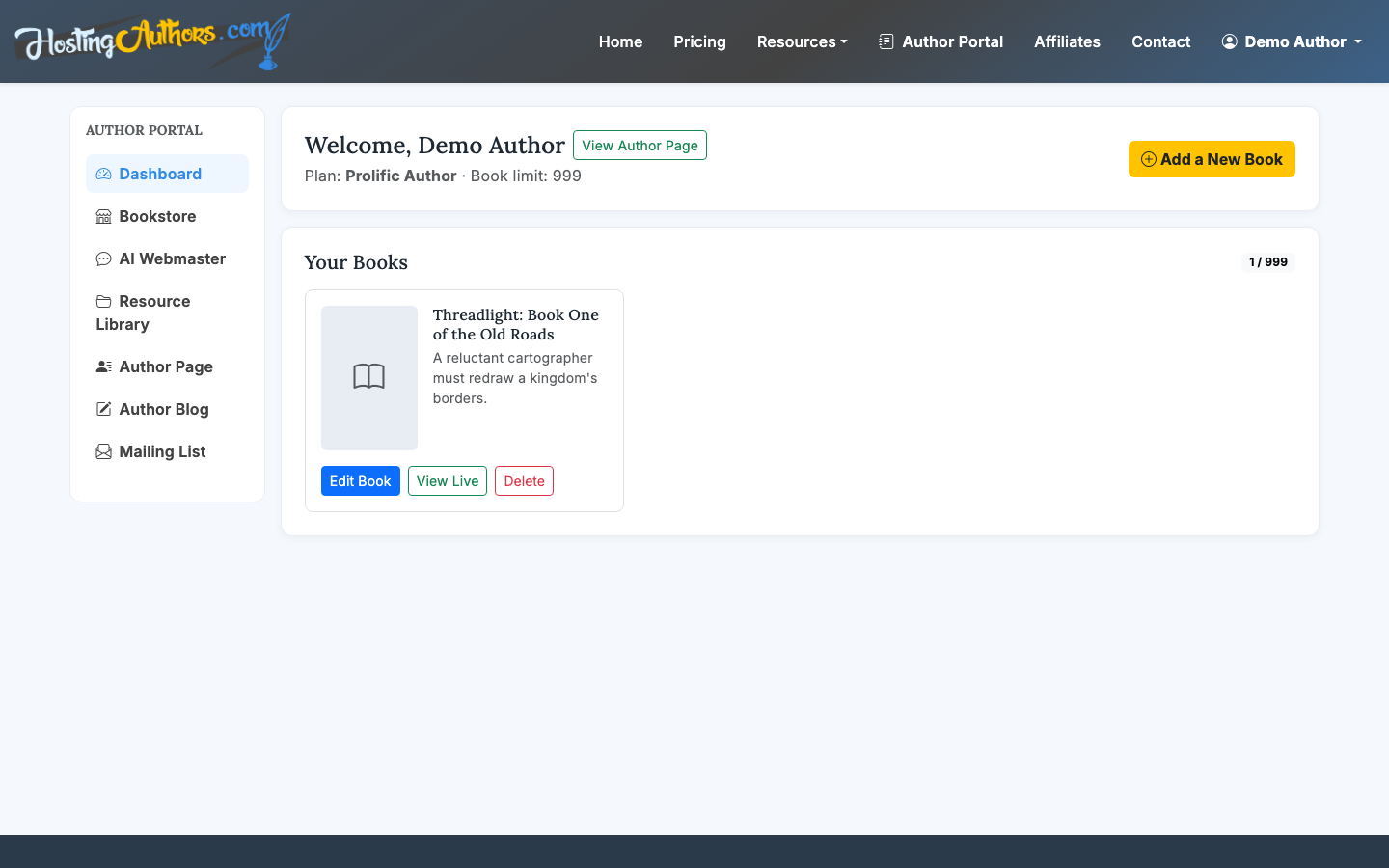
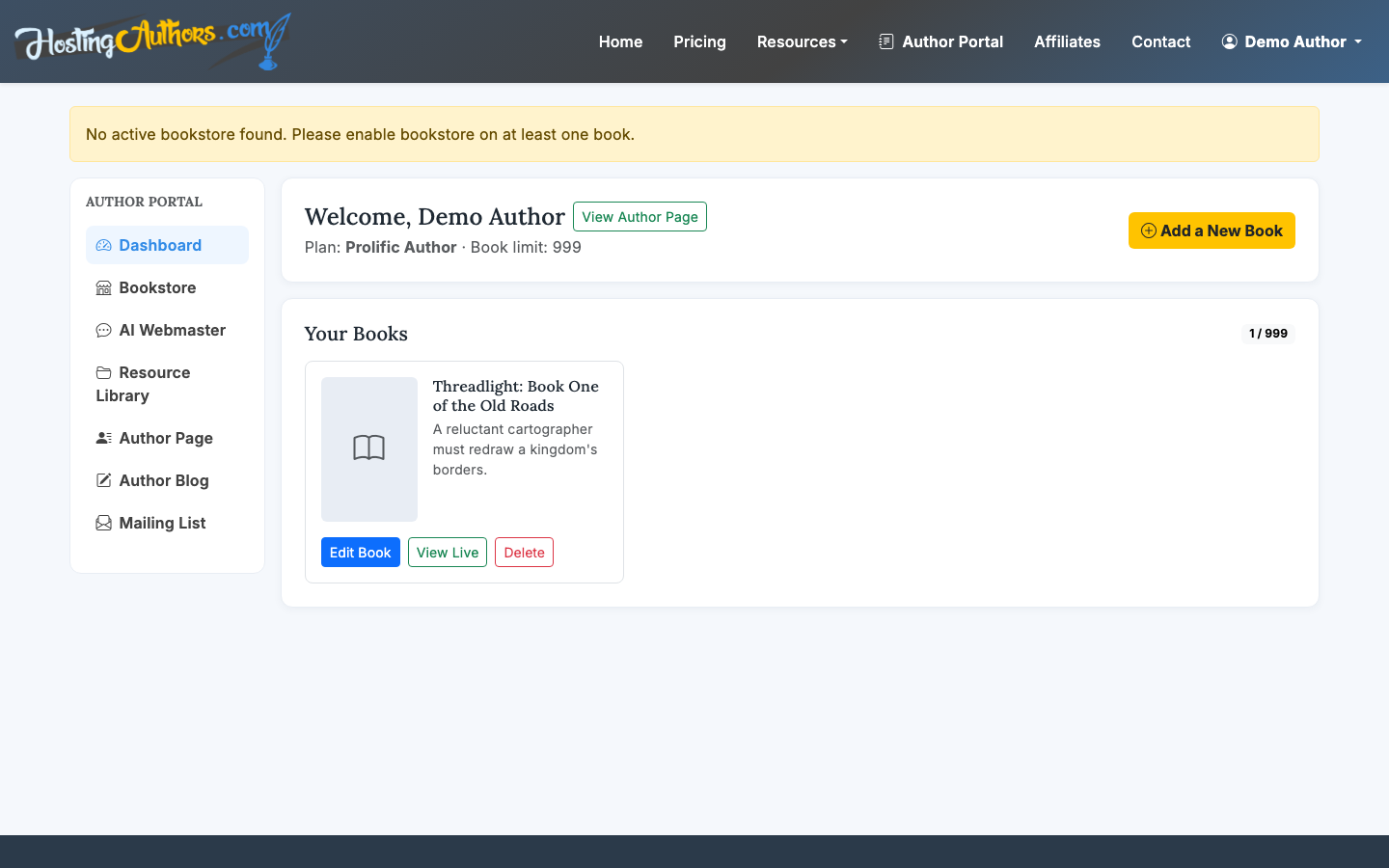
After signup, you will land in the author portal. This is where your books live, with quick actions to edit, preview, delete, or create a new book page.
2. Add your book details
Create a new book and enter the core metadata: title, subtitle, ISBN if you have one, publisher, cover image, and description. If you already have a book cover or buy URL, the AI Webmaster can help turn that source material into a structured book page.
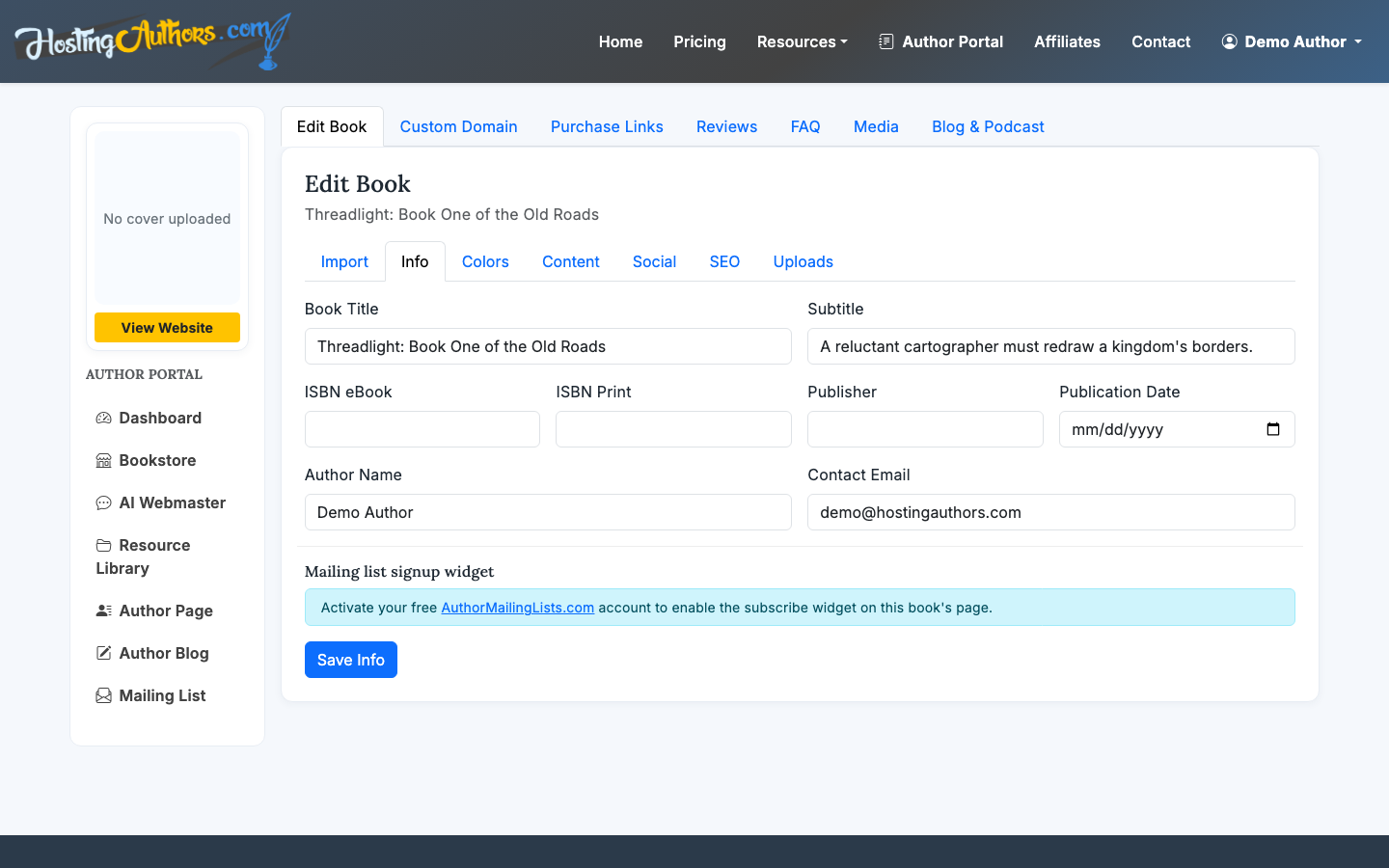
Your book page should lead with the strongest reader-facing information, not every publishing detail. Prioritize:
- A clear title and subtitle
- A high-quality cover image
- A concise synopsis
- Genre or category signals
- One obvious next action, usually buying or joining your list
3. Review the public book page
Once your details are saved, preview the public page. HostingAuthors.com publishes book pages at a URL like hostingauthors.com/your-book-slug, with the cover, synopsis, retailer links, FAQ, and reviews presented in a reader-friendly layout.
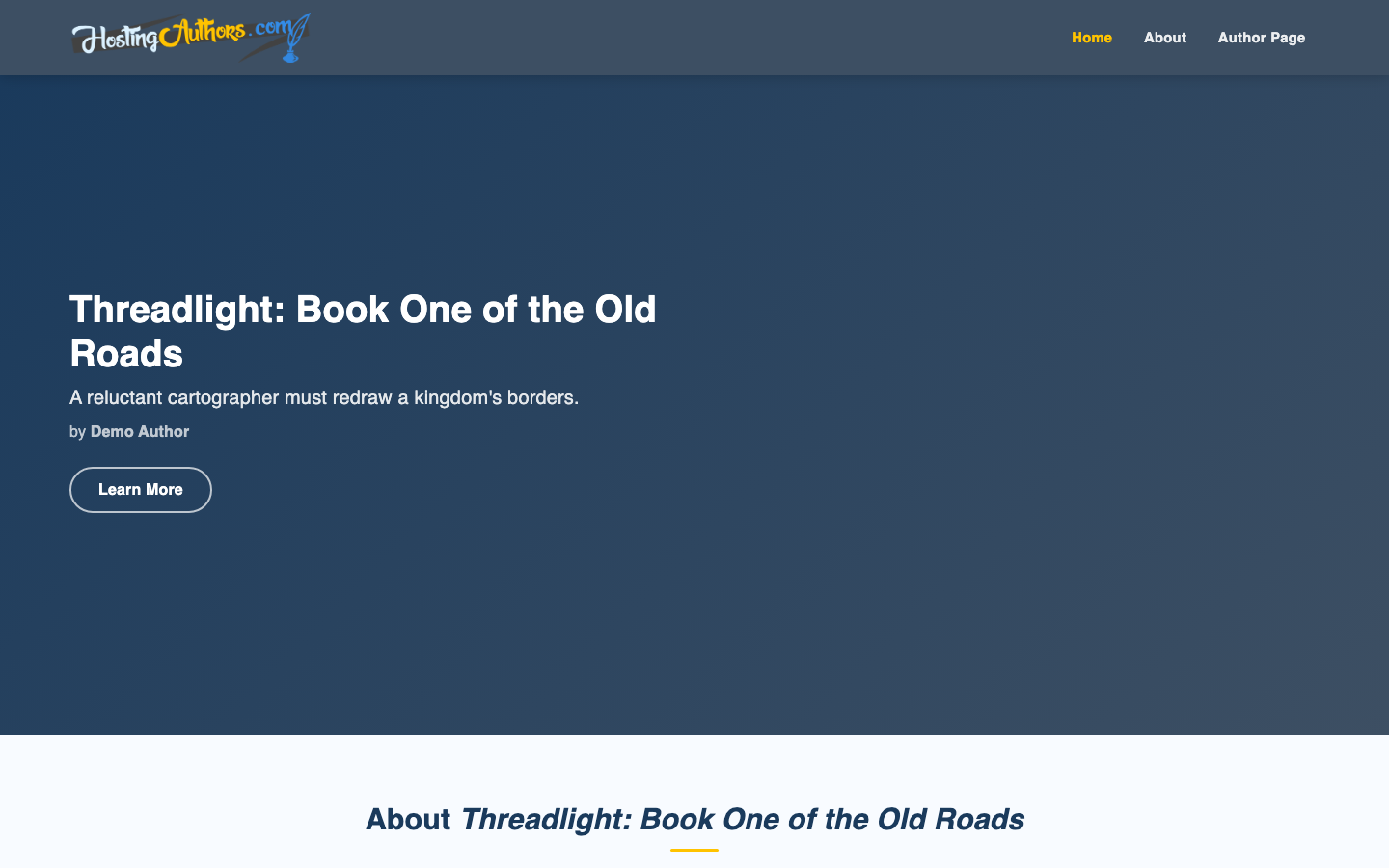
Check the page the way a first-time reader would. Does the cover load clearly? Is the book description scannable? Are the buy buttons easy to find? If the page feels crowded, remove anything that does not help a reader decide whether to buy or subscribe.
4. Add purchase links
Next, add the places where readers can buy the book. Most authors include major retailers such as Amazon, Barnes & Noble, Apple Books, Kobo, or Bookshop, depending on format and distribution.
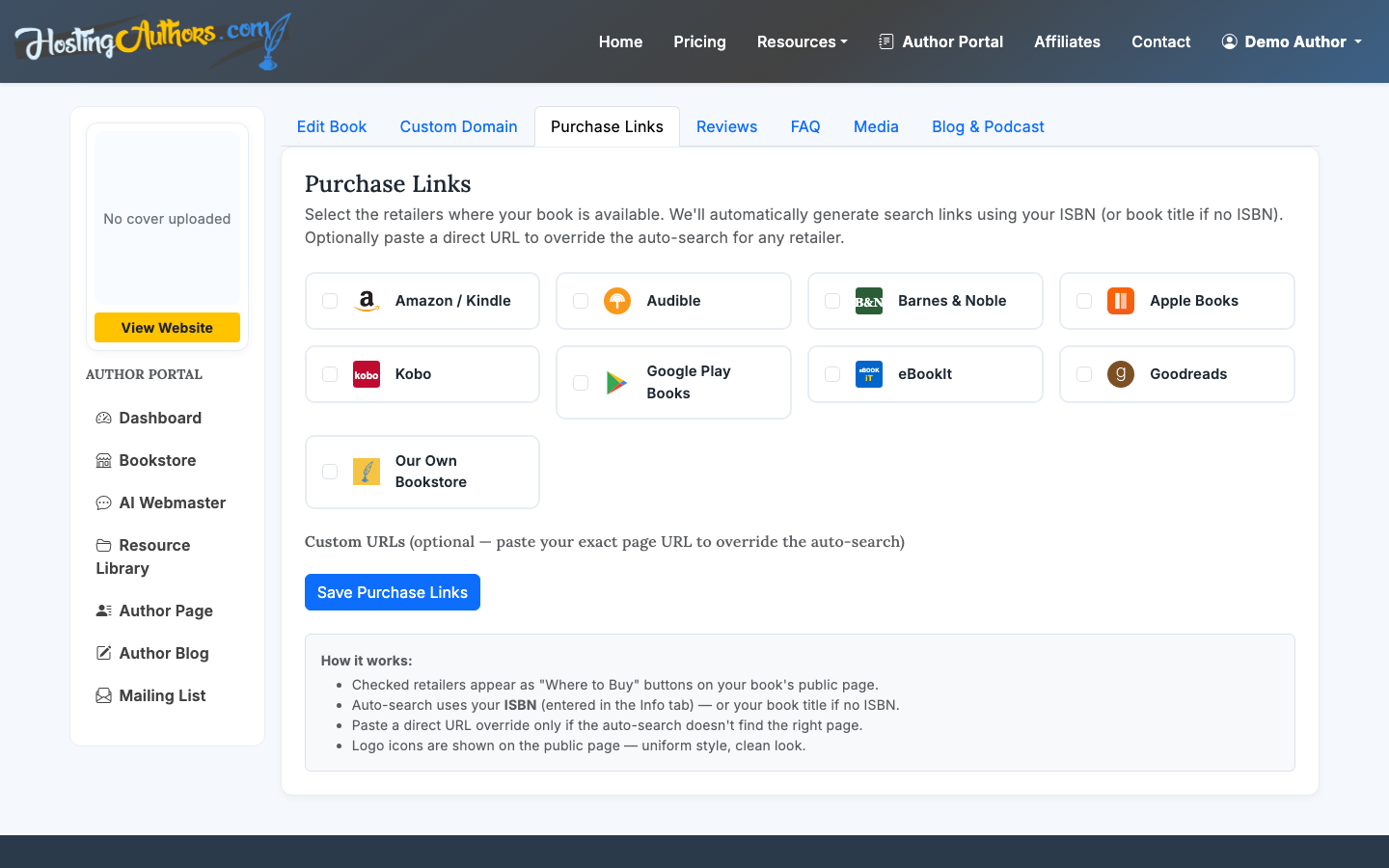
Use direct links to the exact book page, not a search results page. If you have paperback, ebook, and audiobook editions on different platforms, label them clearly so readers do not have to guess.
5. Add FAQ items for reader objections
A book FAQ is useful when readers have practical questions before buying. Good FAQ entries remove friction without turning the page into a long sales pitch.
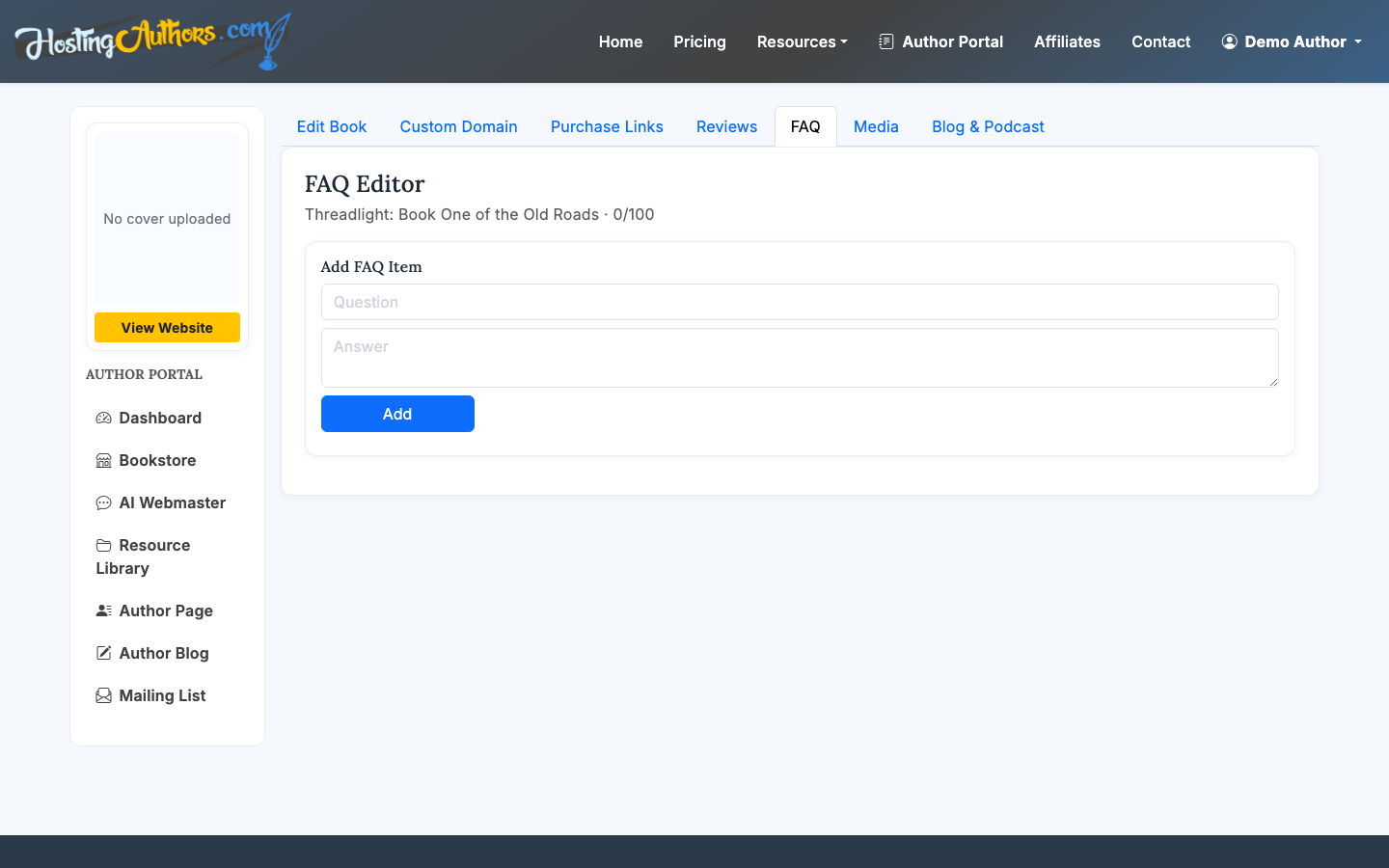
Useful FAQ topics include:
- Is this book part of a series?
- What age range is it appropriate for?
- Is it available in paperback, ebook, or audiobook?
- Do I need to read another book first?
- Are bulk, classroom, or book club copies available?
For nonfiction, use FAQ entries to clarify outcomes, audience, and prerequisites. For fiction, use them to clarify series order, genre expectations, content notes, or reading format.
6. Add reviews or endorsements
Reviews, blurbs, and endorsements help readers decide faster. Add short, curated quotes from credible sources when you have them: editorial reviews, author blurbs, reader reviews, trade reviews, or media mentions.
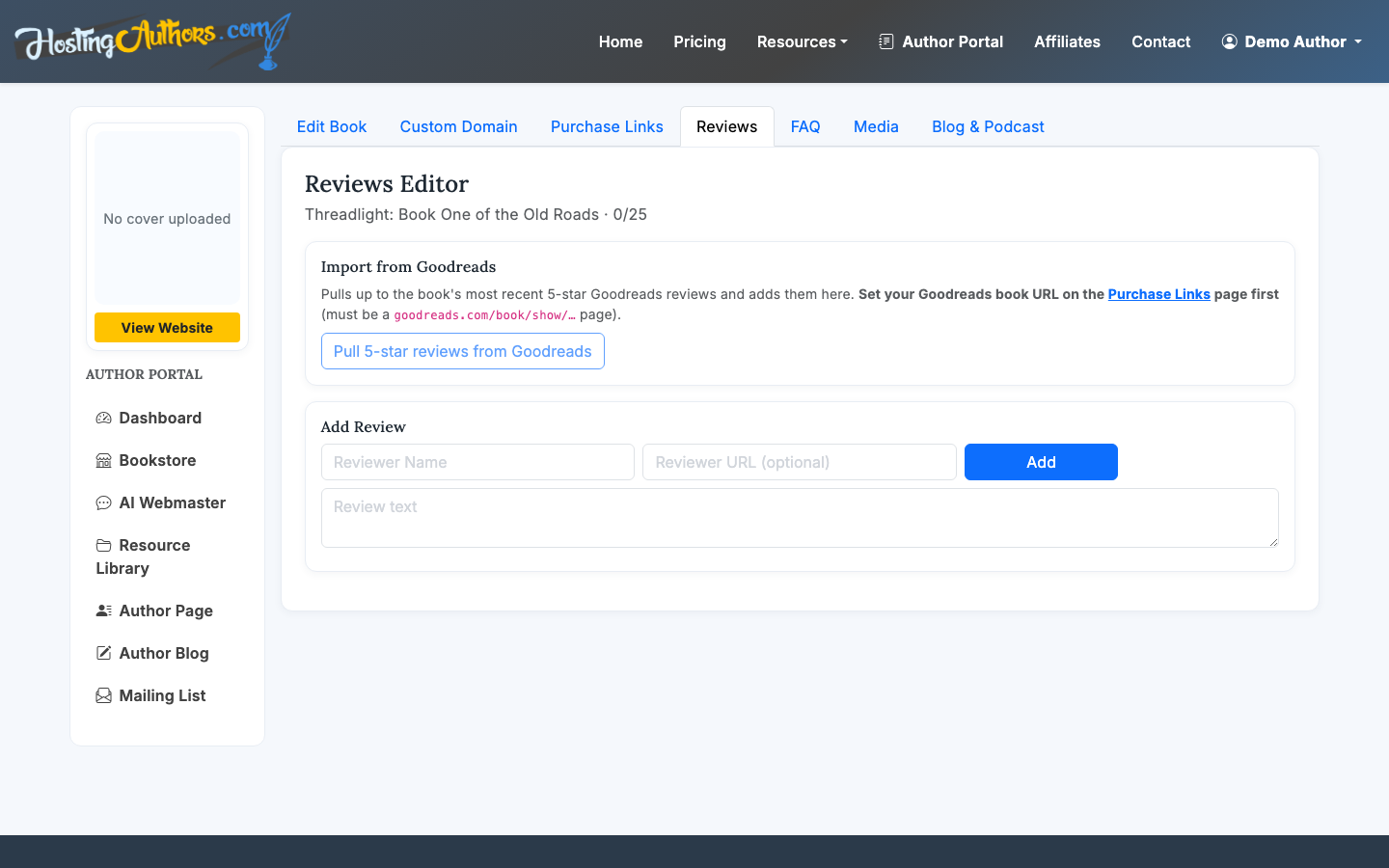
Keep each review excerpt short. One or two strong sentences usually work better than a full paragraph. If a review source is recognizable, include attribution. If the source is a reader review, avoid overclaiming and keep the wording natural.
7. Set up your mailing list
If you are on a paid tier, you can add a per-book mailing list signup widget. This is useful for launch updates, bonus chapters, sequel announcements, reader magnets, or event invitations.
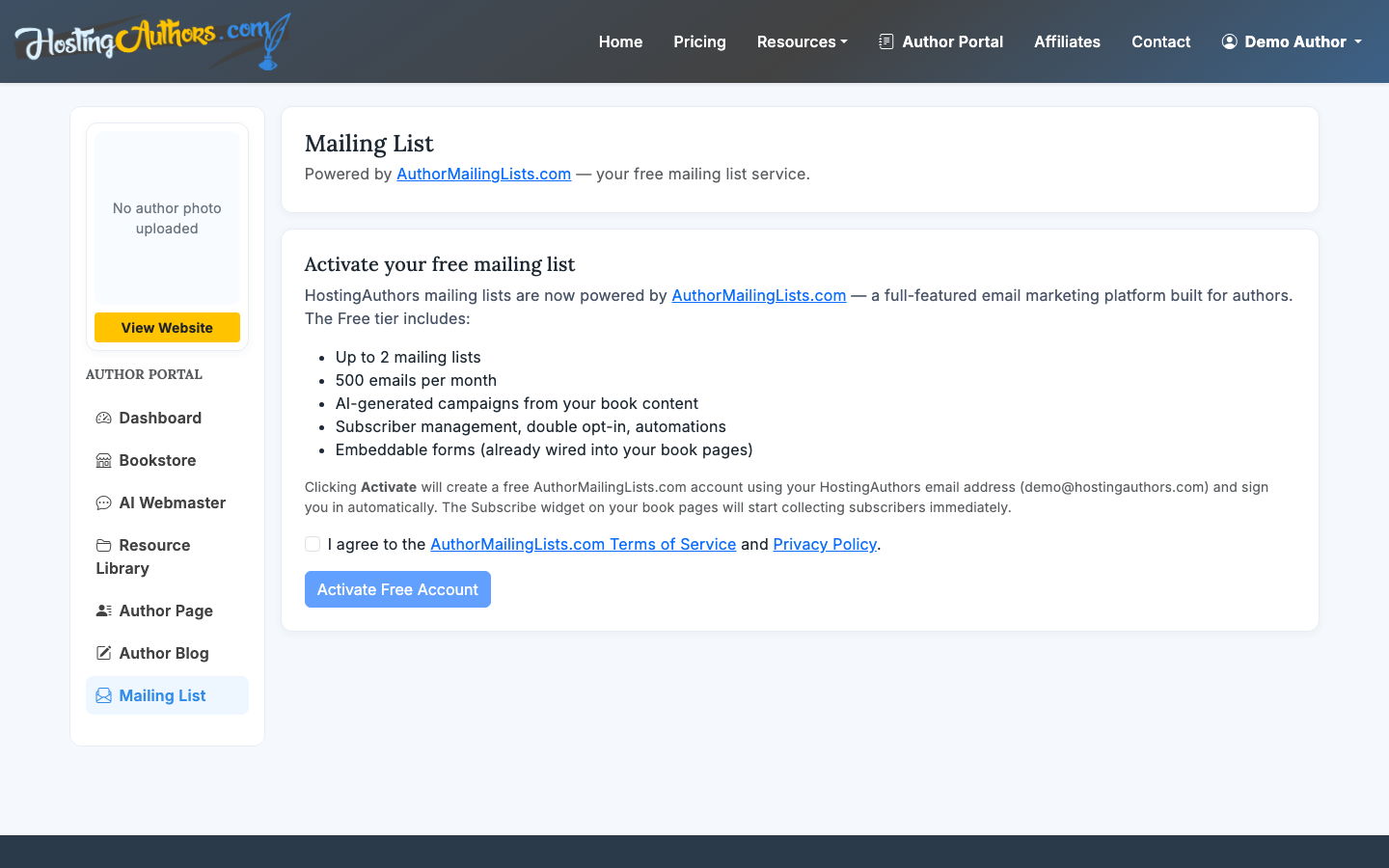
A good signup offer is specific. Instead of saying "Join my newsletter," tell readers what they will get: release updates, bonus scenes, writing notes, discounts, or early access.
8. Enable direct sales if you want your own bookstore
Authors on paid plans can enable a direct bookstore with PayPal, Authorize.Net, or Stripe. This lets you sell directly from the book website while keeping 100% of the revenue after payment processing fees.
Direct sales are best when you can fulfill the product reliably. Ebooks, signed copies, bundles, courses, and bonus editions can work well. If you only want the simplest setup, retailer links are easier to maintain.
9. Connect the book page to your author presence
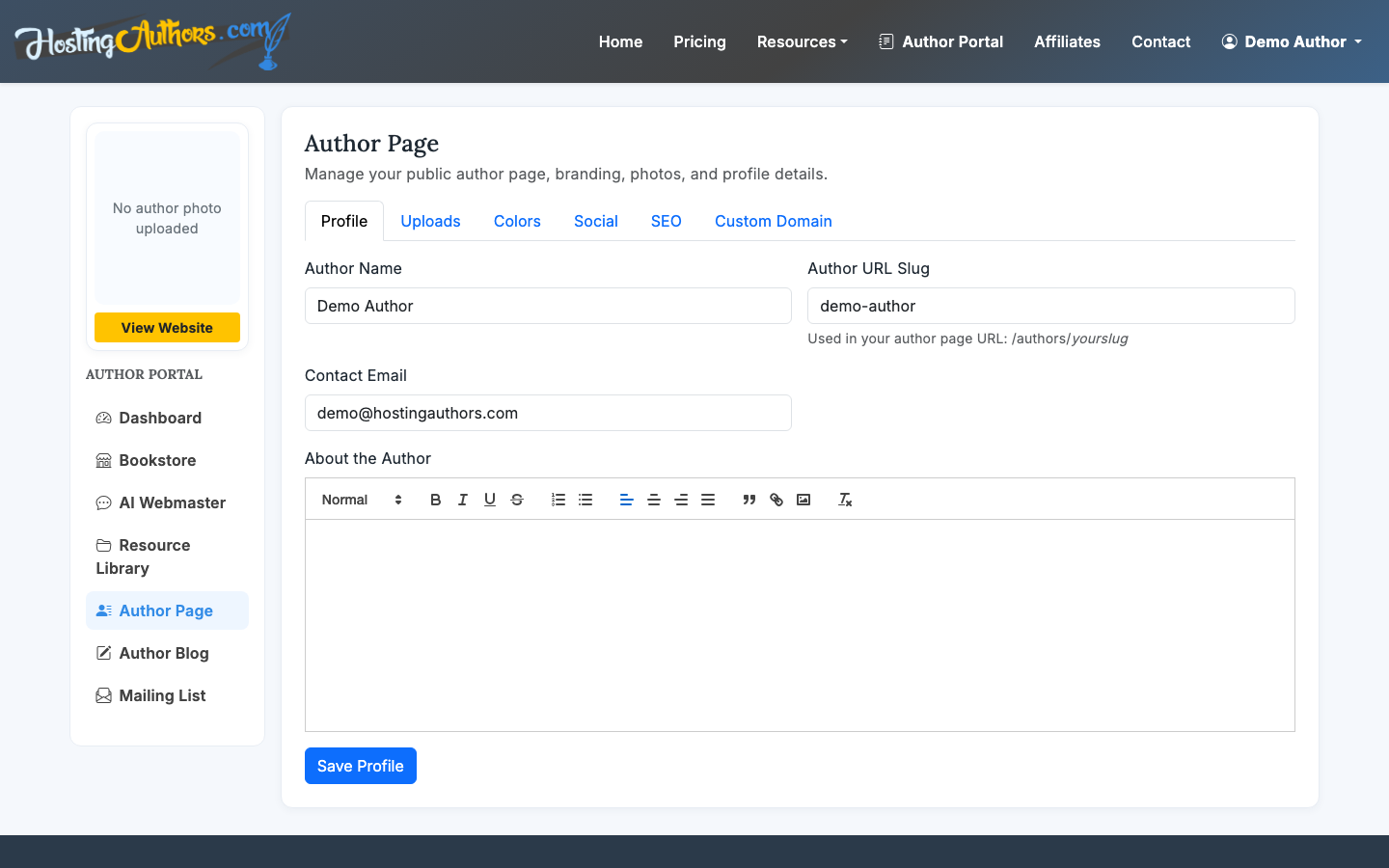
If you have an Established Author or Prolific Author plan, create an author hub with your bio, photo, social links, and public author URL. This gives readers a place to find your other books and learn more about you.
For a broader setup, read How to Create an Author Website or How to Make an Author Page. If your main goal is selling directly, see How to Sell Ebooks on Your Website.
10. Publish and check the page before sharing
Before you share the URL, do a practical launch check:
- Open the public page on desktop and mobile
- Click every retailer link
- Test the mailing list signup if enabled
- Confirm the cover image is sharp
- Read the synopsis out loud once for clarity
- Check that FAQ and reviews do not repeat the same point
- Make sure your call to action is visible near the top
When the page is ready, use the URL in your social profiles, email signature, launch emails, media kit, podcast guest bio, QR codes, and retailer author profiles.
How to set up a book landing page that converts
A landing page should focus attention. The reader should not have to navigate through a full author site just to understand one book.
The most reliable structure is:
- Cover, title, subtitle, and buy button
- Short synopsis
- Retailer or direct purchase options
- Reviews or endorsements
- FAQ
- Mailing list signup
- Author bio or link to author hub
That order works because it follows reader intent: understand the book, decide whether it fits, check social proof, resolve objections, then act.
Free vs. paid setup
You can create a public book page on the free New Author plan. That is enough for many authors who need a professional destination for a book launch, back-cover QR code, or social profile link.
Upgrade when you need features that support ongoing reader relationships or direct commerce: author hub, mailing list, direct bookstore, custom domain support, blog, podcast RSS, or expanded author presence. Established Author is $9/month or $90/year, and Prolific Author is $19/month or $190/year. SelfPublishing.pro AuthorPass holders can unlock Established Author free.
